If your MacBook has gone from snappy to sluggish, you're not imagining it. Spinning beach balls, apps taking ages to open, fans running for no obvious reason: it all points to the same problem, and most of the time you can fix it yourself before spending a penny. This guide walks through the free fixes worth trying first, then the point where a hardware limit is the real issue and a faster machine actually makes sense.
Fastest Ways to Speed Up a Slow MacBook
Restart your Mac, then open Activity Monitor and quit whatever's eating your CPU or memory. Clear out old login items in System Settings, free up storage until you've got at least 15-20GB spare, and install the latest macOS update. Those five steps take about ten minutes and fix most slowdowns on their own. If the MacBook is still crawling after that, the problem is usually the hardware itself, not something you can tweak your way out of.
Why Is Your MacBook Running Slow?
A few things cause most of the slowdown people notice:
- Too little free storage. macOS needs breathing room to manage memory swaps and temporary files. Once you're under 10-15% free space, everything drags.
- Too many login items and background apps. Every app that launches at startup is competing for the same CPU and RAM.
- An outdated macOS version or outdated apps. Old software can behave badly on newer updates, or miss performance fixes Apple's already shipped.
- An ageing battery or thermal throttling. Older Intel MacBooks especially will slow themselves down deliberately to avoid overheating.
- A machine that's simply underpowered for what you're now asking it to do. 8GB of RAM was fine for browsing and email in 2019. It's not fine for a dozen Chrome tabs, Slack, Zoom, and Photoshop running at once.
Free Fixes to Try First
Before you spend anything, work through these:
- Restart properly. Not a sleep, an actual restart. It clears RAM and kills stuck background processes.
- Check Activity Monitor. Open it via Spotlight, sort by CPU or Memory, and quit anything hogging resources you don't recognise or need.
- Trim your login items. Go to System Settings > General > Login Items & Extensions and remove anything that doesn't need to launch automatically.
- Update macOS and your apps. System Settings > General > Software Update, plus the App Store's Updates tab.
- Cut down browser tabs and extensions. Chrome in particular is notorious for eating memory tab by tab.
- Run Disk Utility's First Aid if you suspect disk errors, especially on an older Mac that's never had one.
Do these regularly rather than only when things get bad, and you'll avoid most slowdowns before they start.
Free Up Storage Space Properly
Go to Apple menu > About This Mac > Storage to see what's actually taking up space. The usual culprits are old downloads, duplicate photos synced from an iPhone, and app caches that quietly grow for years. Clearing the Trash after deleting large files matters too; it doesn't actually free the space until you empty it. Aim to keep at least 15-20GB free at all times, more if you're working with video or large design files.
When Software Fixes Aren't Enough: Hardware Bottlenecks
If you've done all of the above and the MacBook still struggles, you're probably up against a hardware ceiling rather than a software problem:
- 8GB of RAM on a machine doing modern multitasking. No amount of cache-clearing gets around a genuine memory shortage.
- A hard drive instead of an SSD, on older Intel models. This is the single biggest speed difference you can make on a pre-2015 MacBook, but it means opening the machine up, which isn't something most people should attempt themselves.
- An ageing battery causing performance throttling. macOS deliberately reduces performance to protect a failing battery.
- A processor generation that's simply outpaced by what current software expects, particularly with Apple Silicon apps that run poorly under Rosetta on older Intel chips.
At this point, cleaning tools and terminal tricks stop helping. The honest answer is either a targeted hardware upgrade where the model allows it, or a newer MacBook that isn't fighting its own specs to keep up.
Repair, Upgrade, or Replace: What Actually Makes Sense
Which route makes sense depends on the machine and what you use it for:
- 2019 or later, Apple Silicon (M1 and up): Software fixes should get you most of the way there. If it's still slow, check for a battery health warning or heavy background sync from cloud storage apps.
- 2015-2018 Intel MacBooks with a repairable RAM/SSD configuration: A RAM or storage upgrade can add a genuine two to three years of useful life at a fraction of the cost of a new machine.
- Pre-2015 Intel MacBooks, or anything approaching the end of macOS support: Upgrades hit diminishing returns here. A newer MacBook, even a well-specced refurbished one, will usually outperform an upgraded old one and cost less over time than repeated repairs.
Why Buy Your Next MacBook From PonDesk
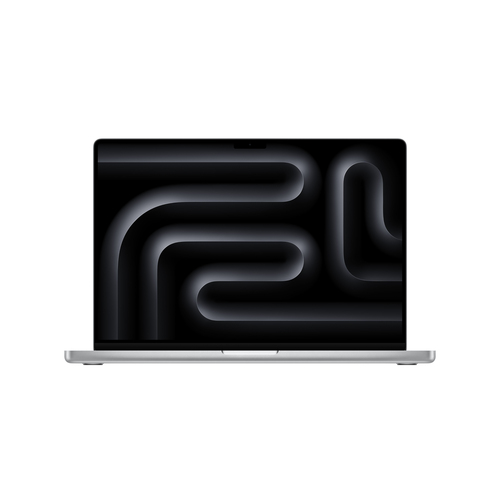
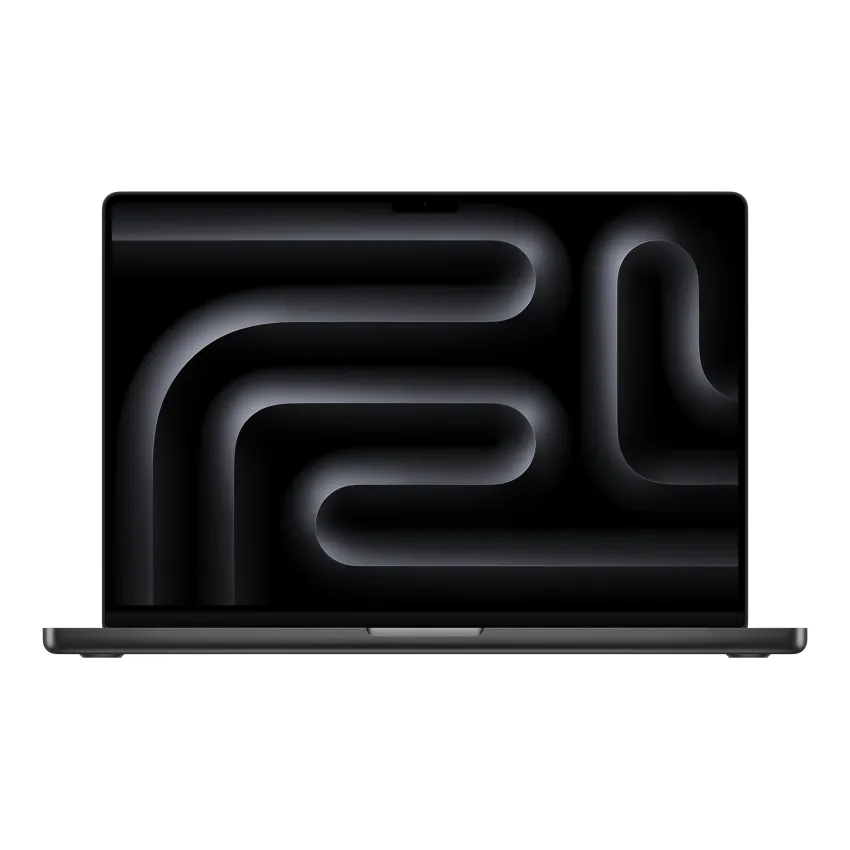
If you've decided a faster machine is the answer rather than another round of fixes, PonDesk carries a range of MacBooks built for real workloads, from everyday use through to music production, video editing, and development. Every unit is sourced and checked properly, not just listed and shipped, and priced competitively against what you'll find elsewhere for comparable specs. Orders across the UK come with free delivery, so there's no added cost tacked on at checkout.
Does resetting the SMC or NVRAM actually help?
It can, but only for specific symptoms: erratic fan behaviour, battery charging issues, or display problems. It won't meaningfully speed up general day-to-day performance on its own, so try the software fixes above first.
Will more RAM always make a MacBook faster?
Only if RAM is actually the bottleneck. If your Mac is swapping memory to disk constantly under normal use, more RAM helps a lot. If the slowdown is really an old, failing hard drive or an outdated processor, extra RAM won't fix it.
Is it worth paying for a Mac cleaning app?
Most of what these apps do (clearing caches, finding large files, managing login items) you can do manually for free through Activity Monitor, Disk Utility, and System Settings. They're a convenience, not a requirement.
How do I know if it's a software problem or a hardware limit?
If restarting, updating, and freeing up storage genuinely fix the slowdown, it was software. If the Mac is still sluggish under light use, especially with fans constantly running or storage that's chronically full even after cleaning up, you're looking at a hardware limit.
Should I buy a refurbished MacBook instead of new?
A properly checked refurbished MacBook, particularly a recent Apple Silicon model, gives you most of the performance of a new one at a lower price. The key is buying from somewhere that actually tests and verifies the units rather than just reselling them as-is.
Ready for a Faster MacBook?
If you've worked through the fixes above and your MacBook is still holding you back, it's probably time for hardware that matches what you're actually trying to do with it. Browse PonDesk's current MacBook range to find a model that fits your workload and budget, with free delivery across the UK.








Comments (0)